
Name Spinner
- Spin the demo class
Substitute Teacher Name Picker
Guest teachers can spin a fair random name picker with a demo class roster — no setup, no account. Share a link from the full tool for your real list.
Why substitutes need a ready-made picker
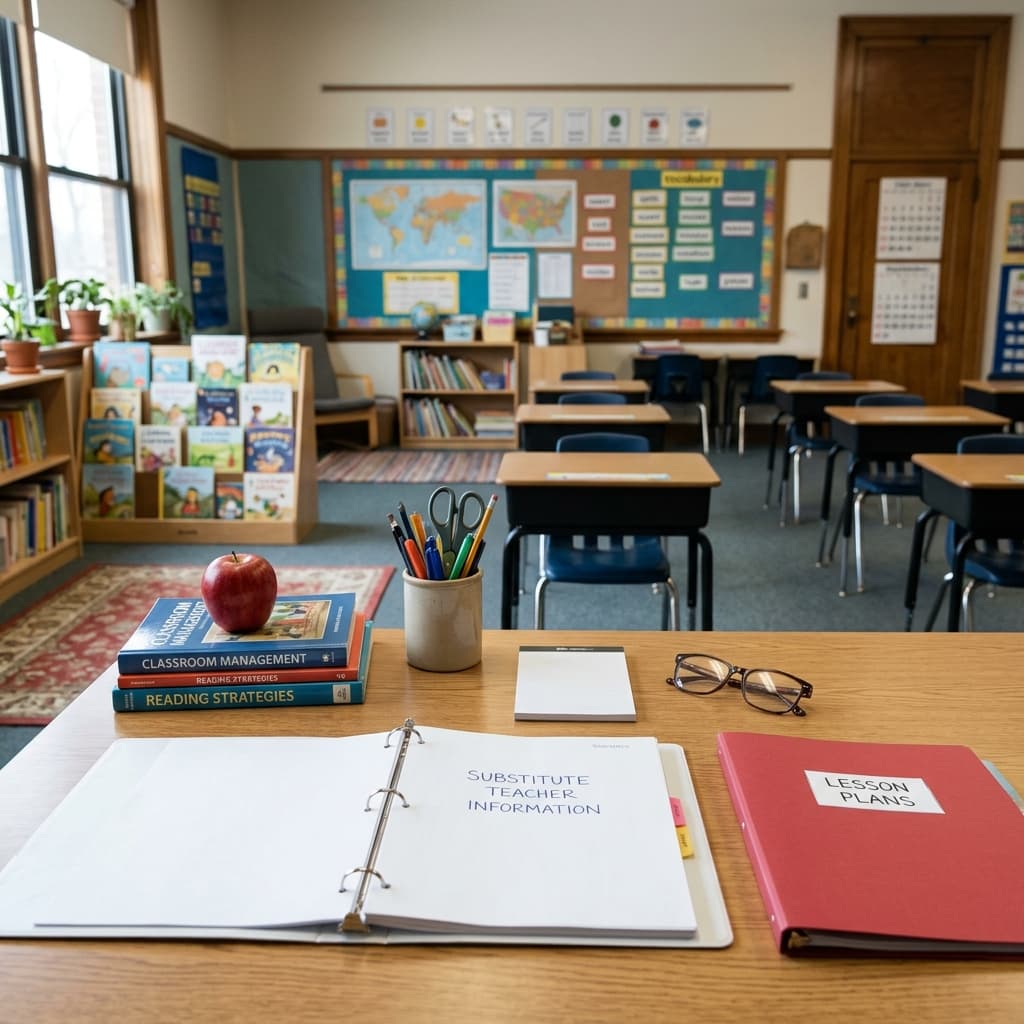
Substitute teachers walk into unfamiliar rooms with limited time to learn every name. Calling students from memory leads to awkward pauses, mispronunciations, and the same volunteers dominating. A random name picker gives guest teachers a fair, visible way to choose who answers — without pretending they already know the roster.
Regular teachers build participation norms over weeks; subs inherit one period to match those norms or lose the room. A spinner on the projector signals "this class uses fair process" even when the adult at the front is new. Students who might test a sub with side conversations often settle when the first cold call comes from a public spin instead of perceived favoritism.
This guide includes a demo class wheel below so subs can practice the flow instantly. For a real assignment, the classroom teacher should paste the actual roster into Name Spinner on the homepage, generate a share link, and leave it in the sub folder. The sub opens the link, spins, and every student sees the process is neutral.
Leave pronunciation notes next to the link — audio clips or phonetic spellings for names the regular teacher still gets wrong in October. Subs appreciate anything that reduces the embarrassment of mangling a name on first call. Seating chart backup still helps for attendance; the picker handles participation once names are verified.
District policy reminder: Names encoded in share URLs travel like any roster on paper — follow your local rules about student identifiers in web tools. When in doubt, use first names only and remove student ID numbers from lists before copying links.
What to leave in the sub folder
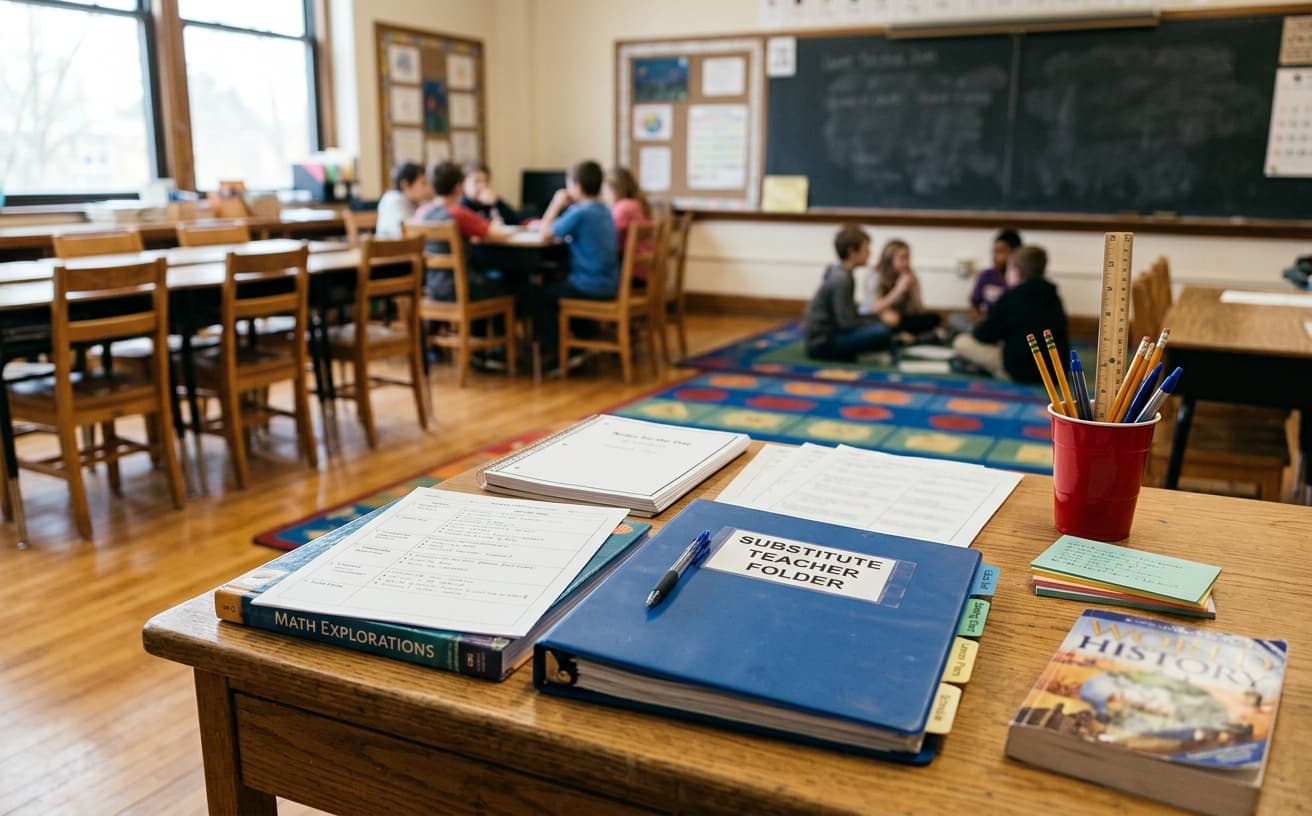
The share link — one URL with names pre-loaded beats a printed seating chart for participation games. One-line rules — "Spin for cold calls; allow one pass per period; remove absent students before spinning." Reset policy — note whether winner history matters or each period starts fresh.
Backup plan — if the network fails, the sub can use a printed roster and draw numbers. Digital pickers are best when the projector or teacher laptop is already on.
Encourage subs to display the spin when possible. Transparency reduces "you picked me on purpose" pushback on day one.
Period-by-period resets: If auto-exclude is enabled for "everyone speaks once," note whether to reset at each bell or carry history through the day. Subs should not guess — ambiguous rules invite arguments.
Behavior cues: Flag which students benefit from warning before cold call versus immediate spin. That is not favoritism — it is accommodation. Keep the list short so subs can scan it during attendance.
Emergency sub bags in elementary sometimes include a QR laminate linking to the picker URL — faster than hunting through email on a chaotic morning. Update the laminate when the roster changes.
First-hour scripts that work
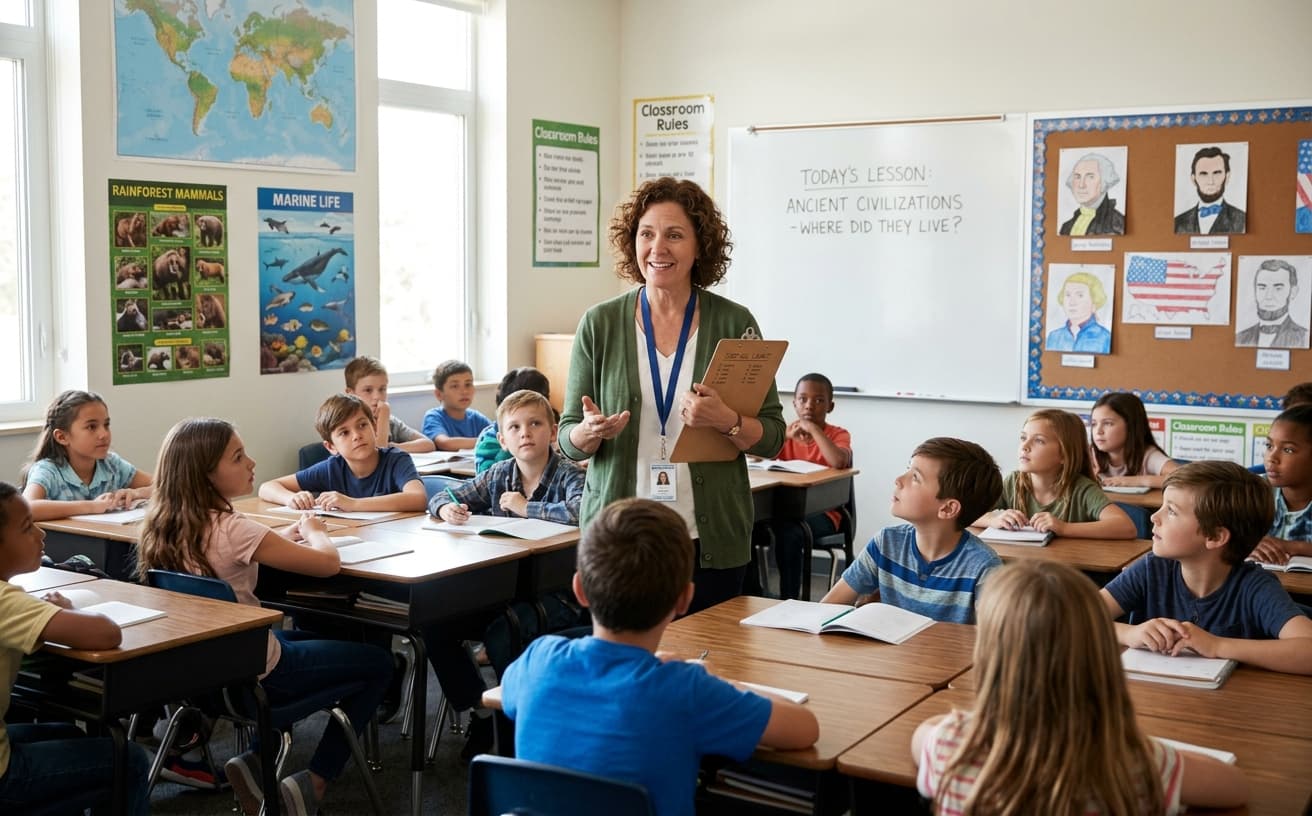
Open with: "Your teacher left a fair name wheel — I spin, you answer or use your pass." Run a practice spin on a low-stakes question ("favorite lunch item") before academic content. Practice spins teach procedure without grading risk.
- Middle school: Acknowledge that spins feel scary — enforce pass limits consistently so bravery is not punished.
- High school: Pair spins with think-pair-share so the picked student has thirty seconds of rehearsal before speaking aloud.
When a student is absent, delete their name before the period starts — subs should not spin names that echo in an empty chair. When a new student arrives mid-day, add them to the homepage list if Wi‑Fi allows, or call them manually once with explanation.
Sub folder checklist for teachers
- Paste class roster into Name Spinner and copy the share URL
- Write spin rules on the top of the lesson plan
- Note students who prefer not to be cold-called (if applicable)
- Include a backup participation method if Wi‑Fi fails
- Tell the sub where the projector adapter lives
First ten minutes as a sub
0–2 min
Open the shared picker link and confirm names match the roster on the desk.
2–5 min
Explain participation rules — one spin per question, pass policy, absent students.
5–10 min
Run a low-stakes practice spin so the class learns the routine before content begins.
Illustrative sub workflow notes
22
Demo names on this wheel
Practice roster — replace with your class via homepage share link
~1 min
Setup time with link
Illustrative example — open URL and spin
0–1
Passes per period
Example norm — set your own rule in the sub plan
Share links vs this demo embed
This blog embed is session-only — perfect for trying the tool, but it does not save your real roster. The homepage builds a URL encoding your names so substitutes open the exact list you prepared. Update the link when the roster changes mid-year.
Winner history and auto-exclude live on the homepage too. If you want every student called once per block, enable auto-exclude before copying the link and note that in the sub folder.
Co-teachers should share one canonical URL — different links with slightly different names confuse subs and students. Long-term subs deserve a refreshed link weekly if absences accumulate; stale rosters spin empty chairs.
Common questions
Can subs edit names? On a shared homepage link, they can adjust for absences if you allow it. This demo embed supports edit for practice only — changes reset on refresh.
Is student data stored on a server? Names in share URLs are encoded in the link itself for the homepage tool; check your district policy before sharing rosters with any web app.
What if a student is upset by the spin? Acknowledge feelings, enforce the pre-agreed pass rule once, and return to the spin for the next question — consistency matters more than speed.
Can subs use the wheel for teams? Yes — follow the group generator flow with auto-exclude if the lesson plan asks for random groups. Leave group count on the lesson plan header.
What if technology fails mid-period? Switch to numbered popsicle sticks or alphabet order — announce the backup calmly so students do not treat offline mode as punishment.
Pair sub pickers with hall pass instructions in the same folder — subs manage movement and participation with one consistent fairness story instead of improvising both.
Build your sub-ready link
Paste your roster on the homepage, copy the URL, and drop it in tomorrow's sub folder — takes about two minutes.
Create a shareable class wheel →Build your own spinner wheel
Paste any list, import a class roster, save history, and share a link — free on the Name Spinner homepage. No account required.
Open full Name Spinner →Related guides

Fair Student Picker — Classroom Unbiased Guide
Fair student picker for teachers — unbiased classroom wheel, no-repeat mode, and crypto-backed spins. Demo roster, no signup required.
In-page spinner

By Name Spinner
Random Student Picker — No Repeats
Random student picker with no repeats — auto-exclude spreads turns fairly across your class. Free demo wheel; paste your roster on the homepage.
In-page spinner
By Name Spinner
How to Use a Random Name Picker Wheel in the Classroom
Classroom random name picker for teachers — fair student selection, demo roster wheel, substitute handoffs. Free, no signup, crypto-backed spins.
In-page spinner
By Name Spinner
Beverage Picker Wheel — Spin for a Drink
Pick a random drink with a free beverage spinner wheel. Morning routines, party mocktails, and classroom hydration prompts — ten drinks ready to spin.
In-page spinner
By Name Spinner